Get started
Quickstart
Add your levels and switch between them.
Two steps: tell the plugin which levels you care about, then use the dropdown.
1. Add your levels
Open Edit > Project Settings > Plugins > Quick Level Manager.
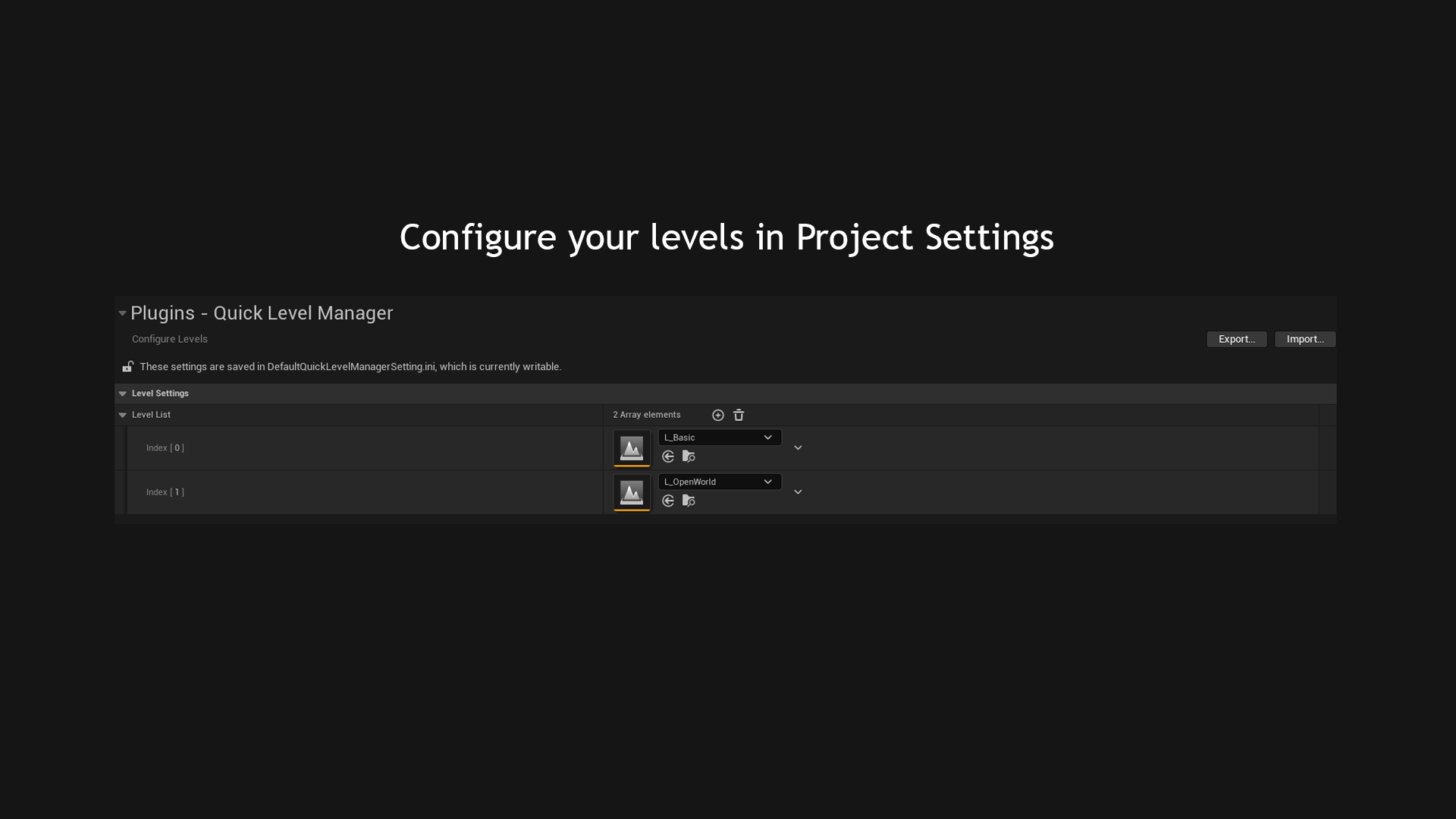
Under Level Settings there is a Level List. Press + to add a row, then pick a level in that row's asset dropdown. Add as many as you want.
2. Use it
Click the toolbar button. Every level on the list is there, named after the asset.
Pick one and the editor opens it. If you have unsaved changes you get the same save prompt as File > Open Level, and backing out of that prompt cancels the switch rather than losing anything.
Changing the list later
The last entry in the dropdown, Quick Level Manager Settings, goes straight back to the settings page. After the first time you never need the Edit menu for this.
The dropdown is rebuilt each time you open it, so anything you change in Project Settings is there on the next click. There is no reload or restart step.