Blueprint
Using it in Blueprint
The component, the event, and the context. Read this before the node reference.
Nearly everything you do with this plugin goes through one component and one event.
Getting the component
The Footstep Component sits on your character. From inside that character Blueprint it is in the components list, so drag it into the graph.
From anywhere else, use Get Footstep Component with an actor:
Get Player Character
  -> Get Footstep Component
  -> Set Footstep State
It returns nothing if the actor has no component, so check it is valid before using it on an arbitrary actor.
The On Footstep event
This is the extension point. It fires for every footstep that passed Should Play Footstep, after the surface has been found and the database has been searched, and before any sound is played.
Select the component, scroll to the bottom of its details, and press + next to On Footstep.
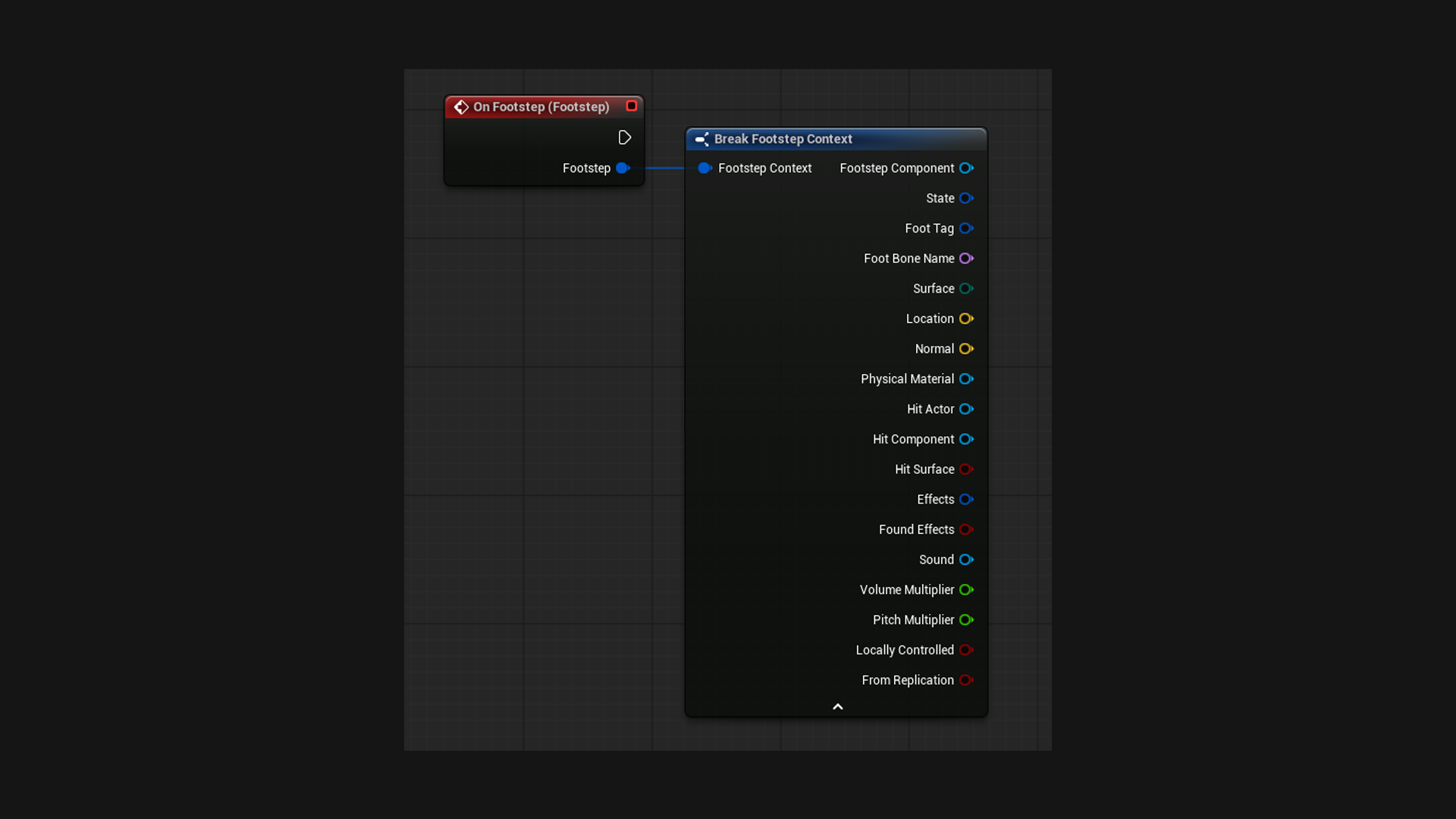
On Footstep (Footstep)
  -> Break Footstep Context
  -> Location, Surface, State, Normal, Hit Actor ...
  -> your logic
The footstep context
Everything the plugin worked out arrives in one struct. Break it and take what you need.
| Pin | What it is |
|---|---|
| Footstep Component | The component that made it |
| State | The state it was evaluated with |
| Foot Tag | Which foot, from the notify |
| Foot Bone Name | The bone it traced from |
| Surface | The physical surface under the foot |
| Location | Where it landed, or the foot position when nothing was hit |
| Normal | Surface normal at that point, or straight up when nothing was hit |
| Physical Material | The material hit, if there was one |
| Hit Actor | What was stepped on. Useful for moving platforms. |
| Hit Component | The component that was stepped on |
| Hit Surface | False means the foot found nothing, like stepping off a ledge |
| Effects | The whole effect set the database matched. Its references are still soft. |
| Found Effects | False means no database had a match |
| Sound | The sound that was picked, already loaded |
| Volume Multiplier | Final volume, database times notify |
| Pitch Multiplier | Final pitch, already randomised |
| Locally Controlled | True for the player's own character. The check for first person only effects. |
| From Replication | True when it came over the network instead of being worked out here |
Three ways to add your own logic
Pick by how wide it should apply.
| You want it to happen | Use |
|---|---|
| On every footstep | On Footstep event |
| Only on certain surfaces | A Footstep Action on those rows |
| Only under your own conditions | Should Play Footstep to reject the footstep entirely |
A Footstep Action is usually the better answer for anything surface specific, because it lives on the row and you never write a "was this grass" check.
Turning the built in playback off
The component plays the sound, particle and decal by itself. Three checkboxes turn that off:
- Auto Play Sound
- Auto Spawn Effect
- Auto Spawn Decal
Turn them off and do it yourself in On Footstep. The picked sound and the whole effect set are still handed to you, so nothing is lost.
If you only want to change some cases, leave them off and call Play Footstep Effects with the context for the ones you did not want to change.
Where to go next
- Node reference for every node and what it does.
- Footstep Actions for per surface logic.