Get started
Quickstart
Six steps to a working footstep.
This gets one sound playing. Everything after this is refinement.
1. Make a state tag
Open Project Settings > Project > Gameplay Tags and add a tag. Name it whatever you like:
Movement.WalkThe plugin never reads the text, so any naming works. See States.
2. Make a database
Right click in the Content Browser, then Footstep System > Footstep Database.
Open it. Under State Effects, press +, and set the key to your Movement.Walk tag.
Inside that entry, open Fallback Effects, then Sound, and add a sound to the Sounds list.
3. Add the component
Open your character Blueprint, press Add Component, and add Footstep Component.
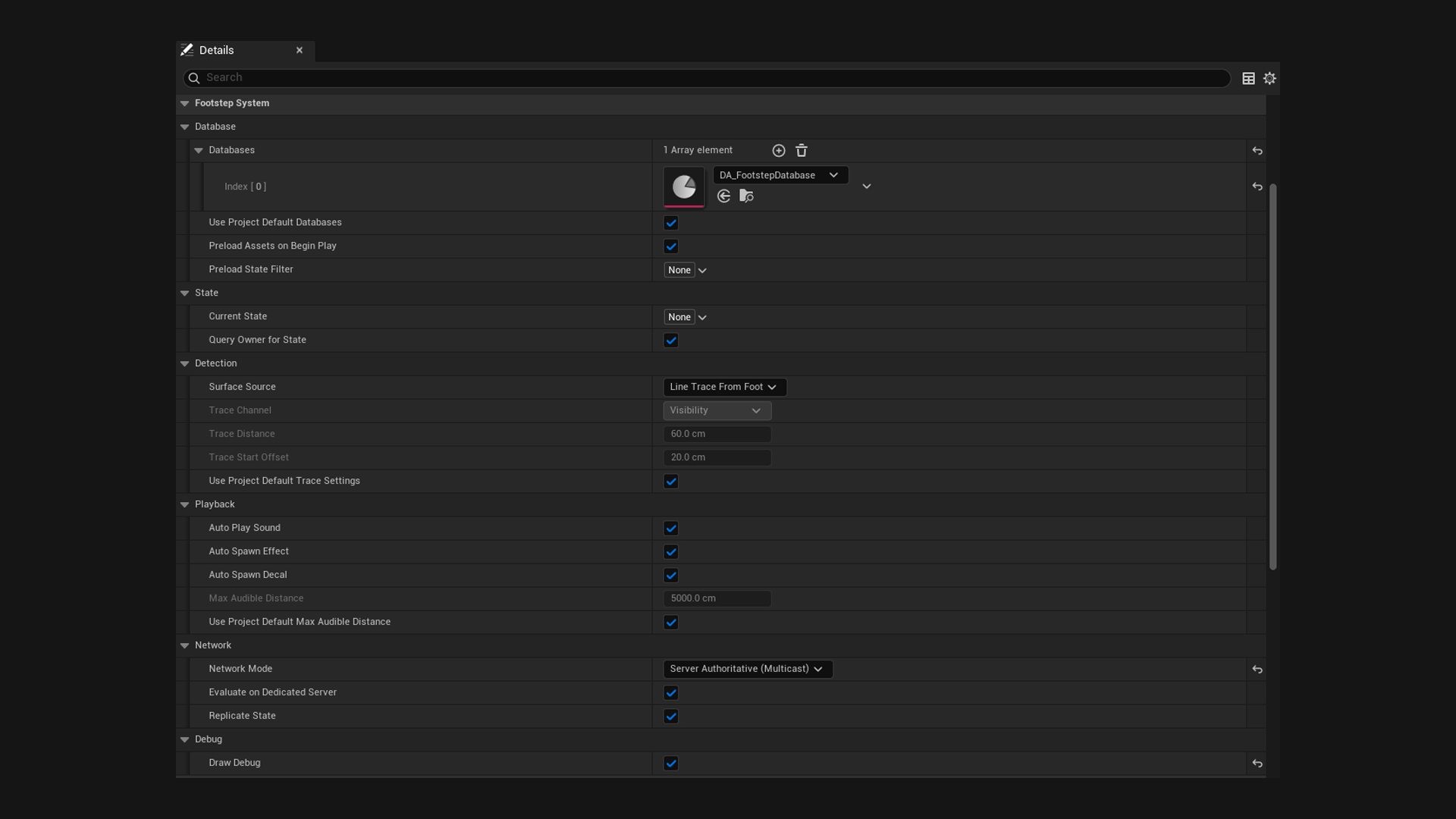
In its details, put your database into the Databases list.
4. Tell it the state
On Event BeginPlay, call Set Footstep State and pass your Movement.Walk tag.
This is enough to get started. Later you will want to change the state as the character speeds up. See States.
5. Put notifies in an animation
Open a walk animation. Right click a notify track at the frame where a foot lands, then Add Notify > Footstep.
Select the notify and set Foot Bone Name to the foot bone, usually foot_l or foot_r.
Do the other foot too.
6. Press play
Walk around. You should hear it.
If you do not, type this into the console:
FootstepSystem.Debug 1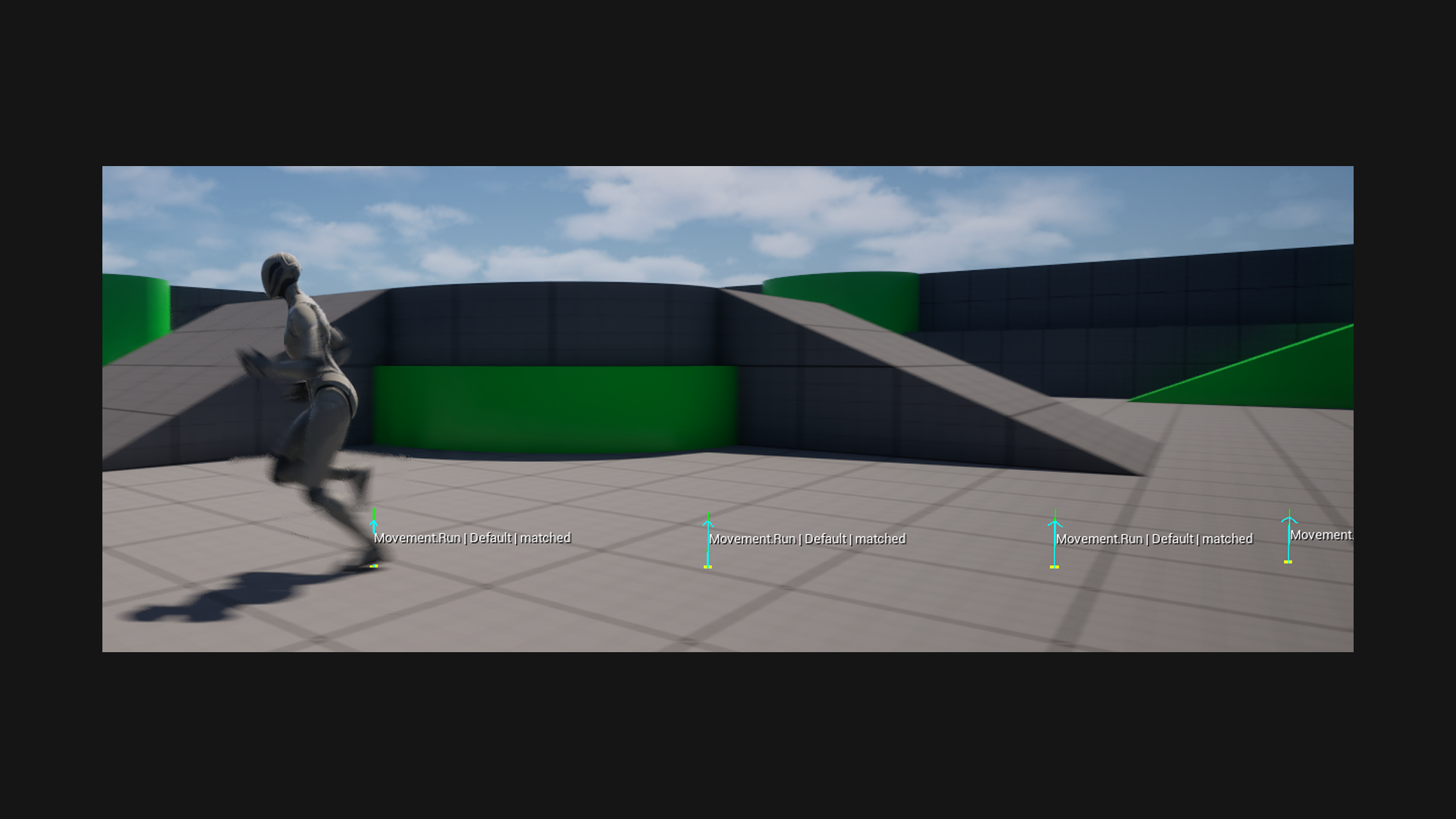
You get a line drawn at every footstep and text saying what it worked out. If nothing draws at all, the notify is not firing. If it says NO MATCH, the notify fired but the database had nothing for that state and surface.
Where to go next
- Surfaces so grass and stone sound different.
- Using it in Blueprint to add your own logic.