Get started
Quickstart
Pick a method and see it in game.
This gets AO on screen and lets you see what it costs.
1. Pick a method
Open Project Settings > Plugins > Multi AO and set Method. A good first pick is GTAO: accurate, clean on open surfaces, and in the middle of the price list.
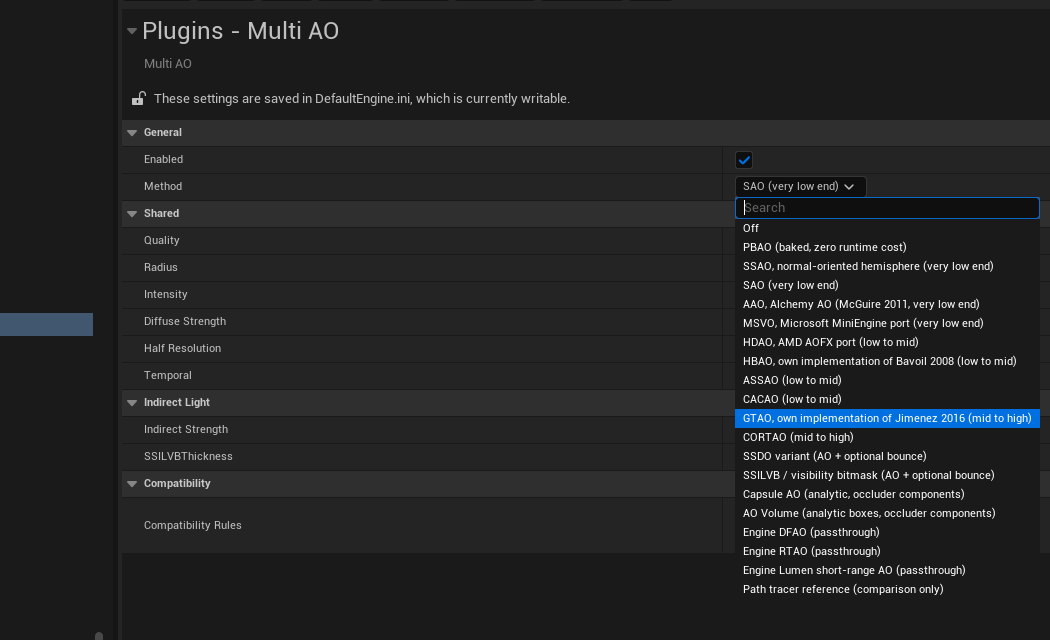
The same thing from the console:
r.MultiAO.Method 10The Method guide has the full list with indices and costs.
2. Look at what it adds
Play in editor and type:
r.MultiAO.Debug 2The left half of the screen is without the plugin, the right half with it. The picture also has Diffuse Strength at 1, see the warning below. r.MultiAO.Debug 0 turns it back off.
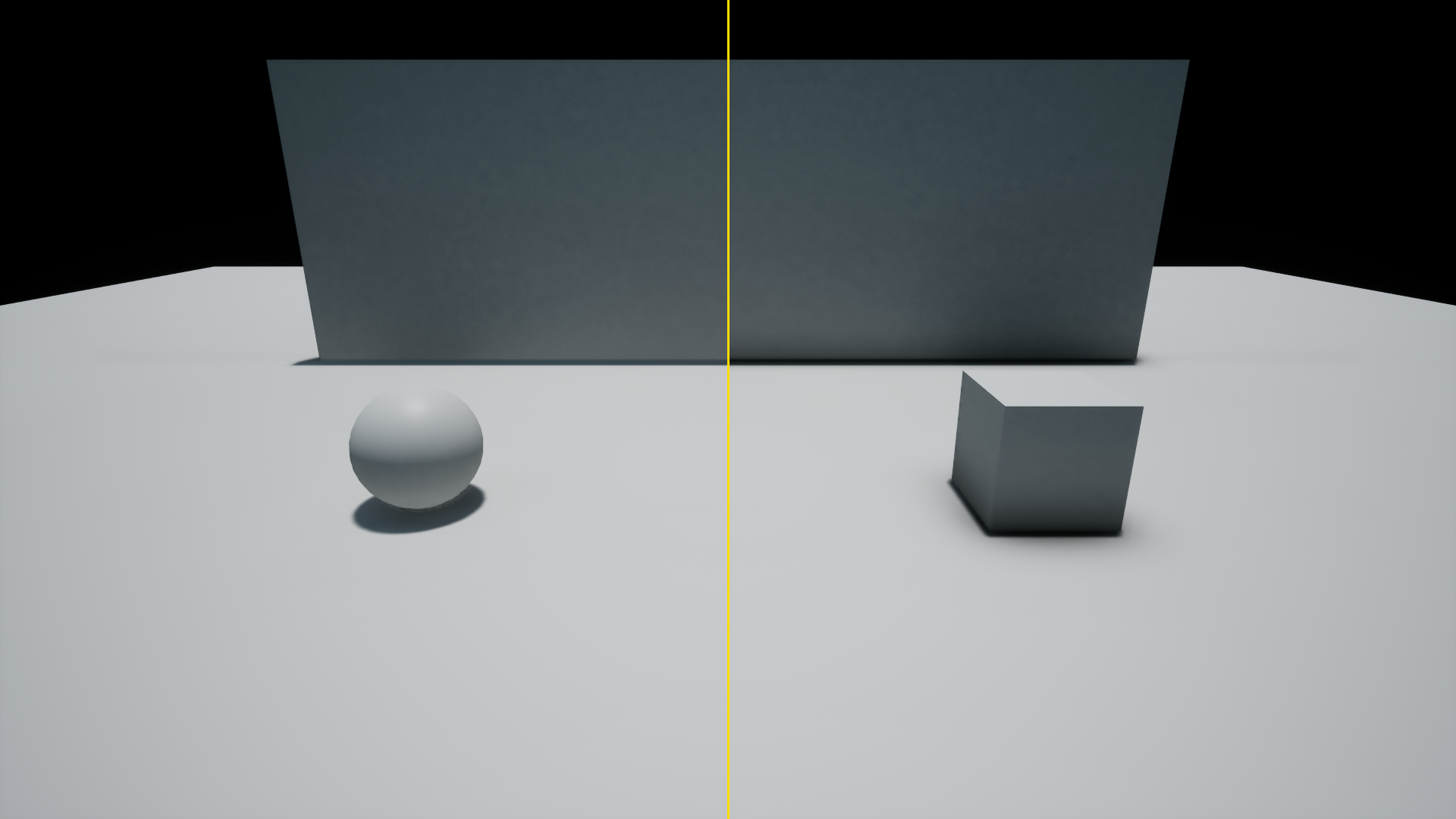
3. Compare two methods
r.MultiAO.CompareMethod 14Now Method is on the left and method 14 (SSILVB) on the right, each with its GPU time. -1 turns the compare view off. More on the Compare view page.
4. Tune it
Raise Radius for wider shadows, Intensity for darker ones, and Quality for less noise. Turn on Half Resolution to roughly halve the cost.